Just keep taking the tablets

I’m often asked about tablet computers and which one to buy. As with any buying decision the first things to think about are what you want the device for, what are the key features you need and what features are nice-to-haves but not essential. Before I outline my advice here’s a brief potted history of tablet computing.

Tablet computers certainly aren’t new but all the early attempts relied on pen/stylus input rather than touchscreens and much of the technology just wasn’t up to the job; the devices were heavy, text input was complex and handwriting recognition was just too unreliable. It wasn’t until Apple released the iPad in 2010 that the market took off. Although Apple ties you in to their ecosystem completely (something that quite a few people dislike) it is the fluidity of the user interface and overall design that has moved this class of computer device into the mainstream.

I don’t propose to offer a detailed technical comparison of tablet computers because other people do it better than me and the information is changing all the time (also it’s incredibly dry!) but here’s some key pointers for you to consider when choosing your tablet.

Which Operating System?

The Apple iPad is the current market leader so iOS, the iPad and iPhone’s Operating System, is as well! This is one of its major selling points and many consider iOS to provide the most user-friendly interface on the market.

The majority of the iPad’s rival tablets run the Android Operating System although with the release of the new Microsoft Surface, Windows 8 is now entering the market.

A key feature of these Operating Systems is that they are also available on phones. iOS is only available on the iPhone but Android and Windows appear on phones from all the major manufacturers. In fact, where the iPhone used to be the undisputed smartphone king recent releases from Samsung and Nokia are delivering more features for less money and these phones are increasing popularity and market-share.

Is bigger always better?

The first iPad was released with a 9.7″ screen and, up until November 2012, that was it. The resolution increased in 2012 with the inclusion of the Retina Display on the 3rd and 4th generation iPads with more pixels per inch making images very clear and vibrant and text smooth and easy to read.

Android tablets were initially available with 10″ screens; however, manufacturers were quick to spot a gap in the market and tablets with 7″ screens started to appear. Apple initially dismissed this screen size stating that 9.7″ was the ideal size; however, this month they appeared to back-track on this and released a 7″ tablet with the same screen resolution as the non-Retina Display 9.7″ model.

Sometimes size does matter?

When deciding on the storage capacity of your tablet you must consider what you plan to do with it. Various sizes are available but generally you can buy them in 16GB, 32GB and 64GB variants.

Most of us use our tablets to watch movies, listen to music, view photos, read books, run Apps etc. so you need to consider what you will put on it and the quality settings of the source material (song, movie, photo etc.) The quality here isn’t a subjective assessment on your musical tastes but refers to the quality at which the source material was converted to make it suitable to play on your device. The key point to note is that the better the quality of the conversion the more of your storage it will use up. Taking a typical 90 minute movie as an example then when converted at low-quality settings it may be around 500MB in size whereas if it was converted at high-quality settings it may take as much as 3-4GB (if you use a rough conversion of 1GB = 1,000MB then you can work out how many movies you can fit on your tablet – two or three on a 16GB device). Songs are generally between 1MB and 4MB and photos can vary even more depending on the conversion used (but that’s a whole other topic!)

My advice here is go for the largest capacity you can afford.

What applications do I need?

Applications (or Apps as they are more widely known) is an area where the tablet really comes into its own. There are literally thousands of Apps out there covering every topic you can think of.

Apple has the largest App catalog available via the iTunes App Store. Apple controls this marketplace very tightly and the applications listed have to pass a number of tests conducted by Apple before they go on sale. This is a very restrictive approach and has been used by Apple to stifle competition (where a third-party App directly competes with an Apple-produced variant) in the past; however, the upside of this is that you can be assured that the Apps on sale reach a minimum standard and are likely to be free from any viruses or malware.

The Android Market (or Google Play as it’s now know) has fewer Apps available but you find that the key ones (such as Skype, Facebook, Angry Birds etc.) are available with developers delivering for both iOS and Android platforms concurrently now so this is becoming less of an issue.

Other things to consider

This is by no means an exhaustive list but may help in your decision by thinking through the other features the tablet has and whether you need them:

  • Do I need a front and rear facing camera (I find it strange to see people holding up their tablets to take a photograph but for something like Skype these really come into their own)?
  • Do I need a detachable keyboard (see My Favourite Gadget)?
  • What about the processor speed and graphics capability (useful if you play some of the more recent graphics-intensive games)?
  • Do I want to connect it to my TV to view photos and movies?

Summary

I hope that the above notes help you in your tablet-buying decision. At the end of the day the device you buy and the spec you choose should be solely driven by your requirements, how you plan to use it and perhaps most importantly, what you can afford.

Poppa G
Home networking – an alternative to WiFi

In the early days I had a single internet connection in one room with a desktop computer tethered to it using a single cable providing all the internet nourishment I could want (as long as I didn’t want it quickly).

Things progressed and I started to want access from more devices. This complicated things slightly but fortunately WiFi arrived and touted as the answer to my connectivity prayers.

This was fine in the early days with one or two devices using the connection but nowadays everything is internet-enabled, smart TVs, Blu-Ray players, games consoles, phones, tablets; everything is always-on and fighting for a little bit of my internet connection.

The other problem with WiFi is more fundamental. I live in an older house with thick walls so there are areas where the connection is patchy or even non-existent. I struggled with this for a while until I discovered a wonderful technology called Powerline Networking. This really is true plug-and-play technology and one that I have had very few problems with – it just works!

The fundamental premise is that you put one of the plugs in a power socket in the room where your internet connection comes in and connect the two together. The signal is then sent around the whole house via your wiring to any number of plugs in other rooms (even across different wiring circuits). There are various manufacturers of these miraculous devices but I recommend that you stick to the same manufacturer for all plugs. Although there is a widely adopted standard for these devices and, in theory, you should be able to mix-and-match it’s not something I’d recommend doing.

There are a number of different products out there depending on the type of connection you need. There are plugs with multiple network sockets and there are even plugs that can act as WiFi hotspots so extending the range of any existing WiFi network. Personally, I have a number of single Powerline plugs in various rooms that connect to simple network switches and enable me to have multiple devices connected to the single Powerline plug.

This technology is incredibly easy to set-up, flexible and reliable and highly recommended if you’re finding WiFi just isn’t delivering what you need.

Poppa G

This is the Computer Department Calling

I’ve had this phone call a couple of times before and know it’s a scam but today I decided to listen to the spiel. The conversation went something like this.

“Hello, I am from the Computer Department and we are receiving a number of ip errors from your computer that indicate there is a major problem that could be corrupting the internals of your computer.”

“Really?”, I reply, “But I monitor my machine and can’t see any issues.”

“That’s because the problem is behind the scenes and you won’t be able to see anything but it is corrupting your machine and if you do not fix it soon your computer won’t work anymore.”

“That sounds terrible!”, I reply, “Please carry on.” (and dig yourself deeper into the hole, I think to myself)

“Yes, this is a very serious problem but luckily we have Microsoft certified staff who can help you to resolve the problem.”

Lucky for me hey! To be honest, I’m bored now and can’t keep up the act anymore so I reply.

“You’re lying aren’t you! I have a Mac. I only use Macs and there are no PC devices in my house.” (not entirely true but acceptable in this case!)

click………………

So this is a warning to all of you out there in case you receive a similar call; it’s a scam.

Poppa G

My Favourite Gadget

It’s no secret that I love the iPad. The convenience, size and weight of this portable powerhouse are just perfect.

At various times since owning one I’ve used it to read books, play games, work, connect remotely to other machines, shop, research and of course email. The form-factor have always meant that everything was a joy, except that on-screen keyboard!

It’s not that bad but for an extended period of work I find it a bit awkward. Not only is there no haptic feedback (a little buzz to provide a sense that you’ve actually touched a key), it also covers a large chunk of the screen and can be difficult to use when the iPad’s in landscape mode and you’re holding it in both hands. Some iOS software tweaks have helped by allowing you to split the keyboard so it is closer to your thumbs on the side of the screen and also allowing you to move the keyboard around but it’s still not great.

The iPad has Bluetooth. This allows you to pair with external keyboards but of course you don’t want to compromise portability by carrying a large keyboard around with you. A number of accessory providers started to build keyboard cases but these generally wrap around the iPad to work as a protective case, a stand and the required keyboard. A nice idea that will definitely appeal to some people but, to me, they just don’t fit in with the whole aesthetic of the iPad; you’re taking this sleek device and cocooning it in a tacky plastic/leather case that hides it completely and adds considerable bulk.

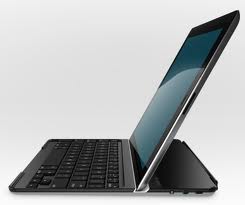
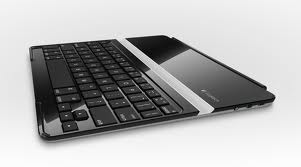
Logitech Ultrathin Keyboard Cover

Logitech Ultrathin Keyboard Cover

So finally we come to my favourite gadget of the moment, the Logitech Ultrathin Keyboard Cover. For me, this device ticks all the boxes. Not only does it function as an excellent keyboard (with a similar feel to standard Apple keyboards) but it is finished in brushed aluminium like the iPad and so when the two are joined together you have a highly portable package finished on both sides beautifully.

The keyboard cover in use

The keyboard cover in use

The keyboard cover is very stable and comfortable to use. The iPad fits into an angled slot and is held in place using the inbuilt magnets along the edge. Although it’s designed to hold the iPad in landscape mode it is possible to use it with the iPad in portrait orientation but because there are no magnets in the base of the iPad to keep it in place you do need to ensure you’re using it on a stable base. Initially, it takes a bit of getting use to because rather than move the cursor with a mouse you touch the screen as normal with just the text entry part handled by the keyboard; it sounds obvious but is strange at first.

All in all, I highly recommend this gadget. If you regularly send emails, surf the net or use the iPad for any sort of work then you won’t regret the initial outlay and you’ll wonder how you lived without it!

Poppa G

Welcome!

Welcome to the world of Poppa G!

Hopefully you’ve read about me and how this blog came into existence so for now there’s not much more to add. Over the next few days I’ll start to add some posts on topics that interest me. I’ll probably start with my favourite gadget and take it from there.

In the meantime, if there is any topic you think Poppa G can help with please contact me via the blog.